
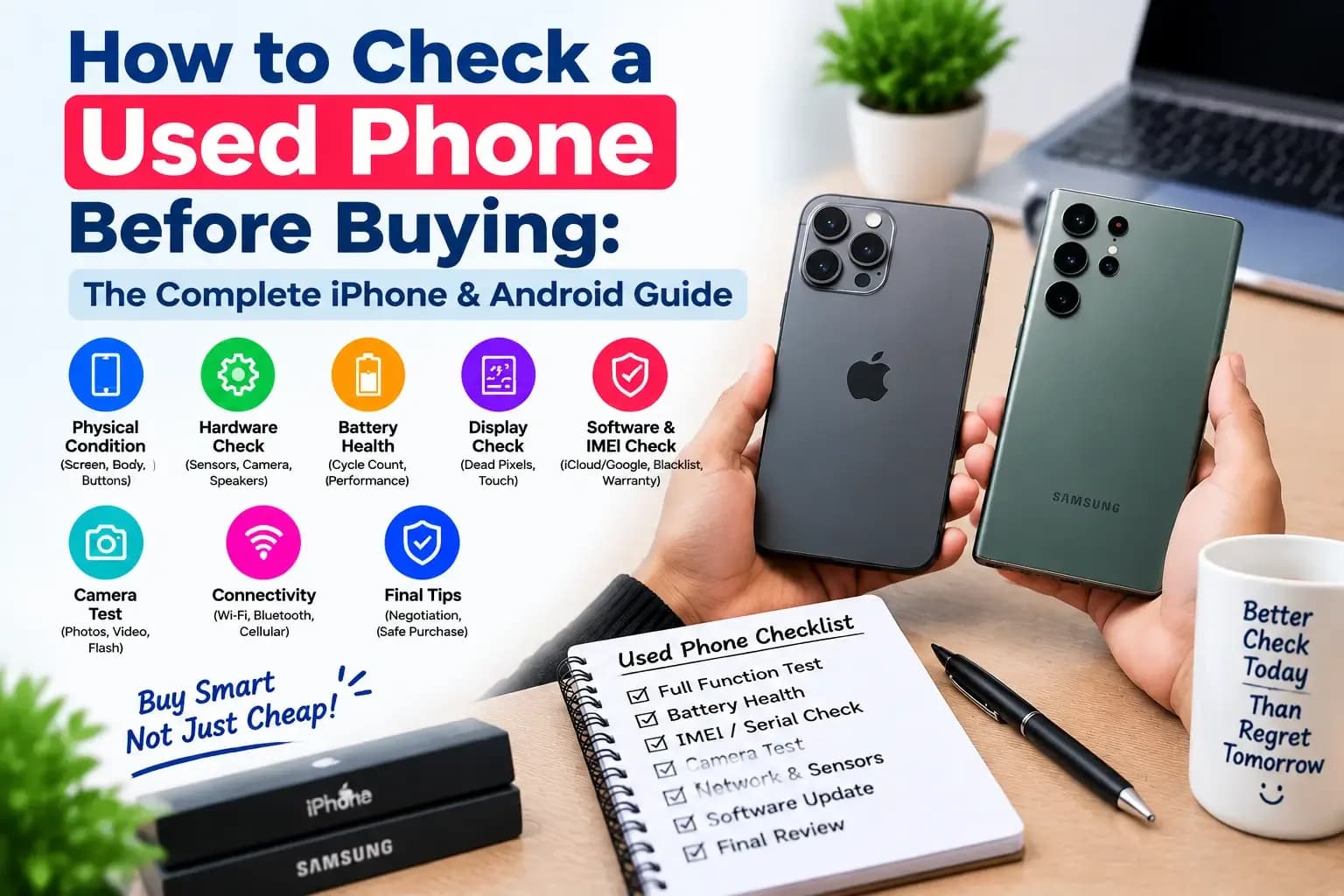
How to Check a Used Phone Before Buying: The Complete iPhone & Android Guide (2026)
A complete step-by-step guide to checking a used or second-hand iPhone or Android phone before you buy it: IMEI and BTRC registration, iCloud and Google locks, battery health, hidden repairs, screen, camera and sensor tests, with every dial code and command.
To check a used phone, go through seven things in this order: the body (frame, screen, back glass, water marks), the IMEI and network status (matches the phone, registered with BTRC, not blocked), the account locks (iCloud, Google, Samsung, Mi), the battery (health and cycle count), the repair history (replaced screen, battery or camera), and the hardware (screen, touch, cameras, speakers, microphone, sensors, charging). Every step below tells you exactly what to tap or dial, and what a healthy and a faulty result look like, for iPhone first and Android second.
The whole check takes about 30 minutes. A phone with an account lock, a network block or earlier repairs can look perfectly normal on the outside, so these checks show what the screen alone cannot.
Looking for a laptop instead? Read our used laptop testing guide. For the official vs unofficial iPhone question, see the Bangla guide আইফোন অফিসিয়াল নাকি আনঅফিসিয়াল. বাংলায় পড়তে চাইলে: ইউজড ফোন কেনার আগে কীভাবে চেক করবেন.
Quick checklist: what to check, in order
Inspect the body, screen, camera glass, ports and SIM tray for damage and liquid marks.
Dial *#06# and compare the IMEI with the Settings screen and the SIM tray.
Check the IMEI with BTRC (NEIR) so the phone is registered and not blocked.
Make sure no account is attached: Apple ID or iCloud, Google, Samsung, Mi or other cloud accounts.
Check carrier lock and company or school management (MDM).
Read the battery health and cycle count, and look for non-genuine or replaced parts.
Test the screen, touch, cameras, speakers, microphone, sensors, SIM, Wi-Fi, Bluetooth and charging.
Run a short load test and watch heat and battery drop.
Reset the phone and confirm it sets up as a fresh phone with no account asked for.
The free browser tools on AvadaBD cover several of these tests on the phone itself, with nothing to install: the display test, the speaker test, the microphone test and the performance test.
What you need before you start
Your own SIM, a SIM ejector pin and a charger. Use them to test the network, charging speed and ports.
A second phone. Use it to test calls, Bluetooth and a Wi-Fi hotspot, and to look up the IMEI.
A computer (optional). A PC or Mac gives access to the battery and system checks in the advanced steps.
A guest profile. Run the tests without signing in to a personal Apple ID or Google account.
Step 1: Inspect the body before you turn it on
Frame and corners: dents on the corners mean it has been dropped. Check the frame is straight and the back glass is not cracked or loose.
Screen: switch it on and look for cracks, yellow or pink patches, a green or purple line, dark spots (dead pixels) and image burn-in. Check the screen edges are not lifting.
Camera glass: a cracked lens cover ruins photos and lets in dust. Rotate the phone and look at the lens under light.
Ports and speaker grills: look for rust, green residue or lint inside the charging port and speaker holes. These are signs of liquid contact.
SIM tray: open it and look for the liquid contact indicator. On iPhones it is a small white or silver dot; red or pink means liquid damage.
Screws and seams: a gap along the edge, missing or damaged bottom screws (on iPhone, the two pentalobe screws) mean the phone has been opened.
Weight and swelling: if the screen is lifting or the back is bulging, the battery is swollen and needs replacing.
Step 2: Check the IMEI and the network status
The IMEI is the phone's fingerprint. It is the same number in four places, and it must match in all four. Dial this on the phone's keypad:
*#06#
A dual-SIM phone shows two numbers (IMEI 1 and IMEI 2). Then compare them with:
the sticker on the box (if the box is available),
the number in Settings, General, About (iPhone) or Settings, About phone, IMEI information (Android),
the number printed on the SIM tray of many iPhones, or under the battery or on the back of older Androids.
The number must be identical everywhere. A mismatch means a part such as the board or SIM tray has been replaced. Write down the 15 digits so you can check the phone against BTRC.
Check the phone with BTRC (NEIR). In Bangladesh, every phone must be registered with the National Equipment Identity Register. A phone that is not registered, or that is blocked, will lose network access. There are two official ways to check:
Option 1: SMS. Send an SMS from any SIM to 16002 with this text:
KYD 123456789012345
Replace the example with the phone's own 15-digit IMEI, with one space after KYD. You will get a reply SMS with the phone's status.
Option 2: the official portal. Open neir.btrc.gov.bd and check the IMEI there. Type the address yourself, because many look-alike websites exist that are not official.
The status should say the phone is registered or in its grace period. A Blocked or Not registered status means the phone will not work on the network until the issue is resolved with BTRC.
Step 3: Make sure no account or lock is attached
A phone that is still linked to a previous owner's account cannot be set up or used. Check it properly, because an account can reappear even after a reset.
iPhone: iCloud, Find My and Activation Lock
Open Settings. At the very top it should say Sign in to your iPhone, not a person's name.
Run Erase All Content and Settings (Settings, General, Transfer or Reset iPhone). This signs out of iCloud and turns off Find My automatically.
After the reset the phone should reach the Hello setup screen and let you continue to "Set up as new iPhone". If it asks for an Apple Account with the text "This iPhone is linked to an Apple Account", the phone is Activation Locked and cannot be used until the previous account is removed.
Android: Google account and Factory Reset Protection (FRP)
Open Settings, Passwords and accounts (or Accounts). All Google, Samsung, Mi, Oppo, Vivo, Realme and other accounts should be removed.
Also turn off the phone-finder features: Find My Device and, on Samsung, Find My Mobile.
Factory reset the phone (Settings, System, Reset options, Erase all data). During setup it must not ask for a previous Google account. If it says Verify your account or Confirm your Google account, the phone has an FRP lock.
Check the brand cloud locks too: Samsung account, Mi Account (Xiaomi, Redmi, POCO), and the Oppo, Vivo and Realme cloud accounts all have their own lock.
Carrier lock and company management
iPhone carrier lock: Settings, General, About. Scroll to Carrier Lock. It must say No SIM restrictions. Anything else means the phone is tied to one operator.
Company or school management: Settings, General, VPN and Device Management (iPhone) or Settings, Security, Device admin apps (Android). It should be empty. A management profile means the organisation can lock or wipe the phone.
SIM test: put your own SIM in and make a call, send an SMS and open a web page over mobile data. A phone that works only with one SIM is locked.
iPhone: how to check a used iPhone
iPhone step 4: Model number, refurbished or replacement
Open Settings, General, About and look at Model Number. It starts with a letter that tells you the phone's history:
M — a brand-new phone that came out of the factory box.
F — refurbished by Apple, with a new shell and a new battery.
N — a replacement unit issued by Apple under warranty.
P — a personalised (engraved) phone.
Also compare the Model Name and Capacity with the product listing, and tap the model number once to see the A-number printed on the back.
iPhone step 5: Battery health and cycle count
Go to Settings, Battery, Battery Health and Charging:
Maximum Capacity is the battery's capacity compared with when it was new. 80 percent or more is healthy. Below 80, Apple's own message says the battery is significantly degraded.
Peak Performance Capability should say that the battery supports normal peak performance. A message that performance management has been applied means the phone has slowed itself down.
Cycle Count is shown directly on iPhone 15 and later. Apple designs iPhone 15 and later batteries for 1,000 cycles; earlier iPhones are designed to keep 80 percent after 500 cycles.
Older iPhones do not show the cycle count in Settings. To read it, turn on Settings, Privacy and Security, Analytics and Improvements, Share iPhone Analytics, wait a day, then open Analytics Data. Open the newest file that starts with log-aggregated, search for BatteryCycleCount, and read the number. This works only if the analytics have been collected, so on a phone you are about to buy, a 3uTools or computer check (below) is faster.
Genuine battery check: if the battery has been replaced with a non-genuine one, Settings, Battery shows Important Battery Message — Unable to verify this iPhone has a genuine Apple battery. Battery Health may then be missing or wrong.
iPhone step 6: Parts and Service History
On iOS 15.2 and later, open Settings, General, About and scroll to Parts and Service History. This section appears only if the phone has been repaired.
Genuine Apple Part — the repair used a genuine Apple part and process.
Unknown Part or Unverified — the part is not genuine or the logic board has been replaced. The phone has had non-Apple repairs.
Used Part — the part came from another iPhone.
No section at all — the phone has not been repaired through Apple's system, or it is a model that does not show it.
A phone with an "Unknown part" on a display, Face ID camera or battery is not necessarily bad, but it is a sign the phone has been opened by a shop. Check Face ID, True Tone and the camera carefully (next step).
iPhone step 7: Face ID, True Tone, cameras and other hardware
Face ID or Touch ID: enrol a face or fingerprint in Settings, Face ID and Passcode. If it says Face ID is not available or fails, the TrueDepth camera is damaged or was replaced badly. This cannot be fixed by a normal shop.
True Tone: swipe down the Control Center and press and hold the brightness slider. The True Tone button should be there. If it is missing, the display has been replaced with a non-genuine one.
Cameras: open the camera and test every lens (wide, ultra-wide, telephoto), flash, portrait mode, video recording and the front camera. Look for black spots, blurry areas and a shaking picture.
Buttons and switch: test volume buttons, the side button and the mute switch or Action button.
Sensors and haptics: the screen should turn off when you hold the phone to your ear on a call, and the Taptic Engine should vibrate firmly.
Charging: test the Lightning or USB-C port with your own cable, and wireless or MagSafe charging if the model supports it.
To confirm the phone is not a very old software version that no longer receives updates, look at Settings, General, Software Update. A phone stuck on an old iOS cannot receive security fixes.
iPhone step 8: Optional computer check (advanced)
On a Windows PC, install 3uTools (a free tool widely used by phone shops). Connect the iPhone, tap Trust on the phone, and 3uTools shows the real battery cycle count, battery health, serial number, activation status, and whether the screen, battery and logic board are original. On a Mac, use the free libimobiledevice tools from Terminal:
brew install libimobiledevice
idevice_id -l
ideviceinfo -k ProductType
ideviceinfo -k SerialNumber
ideviceinfo -k ActivationState
idevicediagnostics ioregentry AppleSmartBattery
The first command prints the phone's identifier when it is connected and trusted. The next three print the model, serial number and activation state (it must say Activated). The last one prints the raw battery information including CycleCount. On some iOS versions part of this data is hidden, so use it as a second opinion, not the only one. Compare the serial number with the one on Apple's coverage page, checkcoverage.apple.com, to confirm the model and warranty status.
Android: how to check a used Android phone
Android step 4: System details, updates and original software
About phone: open Settings, About phone. Check the model name, Android version, security patch level and RAM and storage. A security patch older than one or two years means the phone no longer gets security updates.
Real hardware: install a free app such as CPU-Z or Device Info HW and compare the processor, RAM and storage with the product listing. The real chip is shown there, which confirms the phone is the model it says.
Play Protect certification: open Play Store, Settings, About, and check Play Protect certification says the device is certified. Uncertified phones are often imports with modified software.
Storage and memory: Settings, Storage should show roughly the listed size.
Android step 5: Dial codes that show hardware details
Dial codes work on the phone's keypad app. Brand and Android versions differ, so if a code does nothing, that code is simply not supported on that phone. It is not a fault. Common codes:
Show the IMEI on any Android phone:
*#06#
Open the hardware test menu on Samsung phones (it tests the screen, touch, sensors, vibration, speaker, microphone and camera):
*#0*#
Show the software and hardware version on Samsung phones:
*#1234#
Open the phone information and usage statistics screen on many Android phones:
*#*#4636#*#*
Open the factory test menu on many Xiaomi, Redmi and POCO phones:
*#*#6484#*#*
On Samsung phones, the Samsung Members app also has a built-in phone diagnostics section that tests the battery, touch, sensors and cameras.
Android step 6: Battery health
Many newer Android phones (recent Pixel and Samsung models on Android 14 and later) show battery health in Settings, Battery. If yours does not, use a computer check.
Turn on Developer options (Settings, About phone, tap Build number seven times), then switch on USB debugging. Install Android Platform Tools on your PC (from developer.android.com, or with Homebrew on a Mac), connect the phone and accept the prompt on the phone. Then run:
brew install --cask android-platform-tools
(The line above is for a Mac. On Windows, download the Platform Tools zip, open PowerShell in that folder and put .\ in front of each adb command.) Then:
adb devices
adb shell getprop ro.product.model
adb shell dumpsys battery
adb shell cat /sys/class/power_supply/battery/cycle_count
adb devices should list your phone. In the dumpsys battery output, health: 2 means Good, and the temperature is shown in tenths of a degree (310 means 31 °C). The last command prints the cycle count on many phones; if it says Permission denied or No such file, the phone does not allow it, which is normal. When you finish, turn USB debugging off on the phone and tap Revoke USB debugging authorizations.
Android step 7: Check the bootloader and software integrity
A bootloader that has been unlocked and changed software can hide malware or make the phone insecure. With the phone connected over USB debugging:
adb shell getprop ro.boot.verifiedbootstate
adb shell getprop ro.boot.flash.locked
adb shell getprop ro.build.tags
verifiedbootstate should say green. orange means the bootloader is unlocked. yellow means custom keys.
flash.locked should say 1 (locked). 0 means unlocked.
build.tags should say release-keys. test-keys means a custom build.
These values can be changed on rooted phones, so a clean result is a good sign and an odd result should be investigated further. A phone that shows a warning screen about the bootloader every time it starts has an unlocked bootloader.
Also check which apps are installed. This lists third-party apps:
adb shell pm list packages -3
On the phone, open Settings, Apps, Special app access and look at Device admin apps and Install unknown apps. There should be nothing unfamiliar there. Unknown device admin or accessibility apps are a classic sign of spyware.
Both iPhone and Android: test the hardware
The checks below apply to every phone. Do them with the phone connected to Wi-Fi.
Screen and touch. Open the display test and cycle through solid red, green, blue, white and black. Look for dead pixels, burn-in, a tint, flicker or lines. Then drag your finger across the screen edges and corners to check touch is smooth, with no dead zone and no "ghost touch" (the phone tapping by itself).
👉 Test it here (free, nothing to install): https://avadabd.com/display-test
Speakers and earpiece. Play music at 50 percent and at full volume. Listen for crackling, a rattle or one side that is quiet. Make a call and check the earpiece, and check the speakerphone.
👉 Test it here (free, nothing to install): https://avadabd.com/speaker-test
Microphone. Record a voice note or a video and play it back. Test the main microphone, the speakerphone and a wired or Bluetooth headset. Ask a friend to call you and confirm they hear you clearly.
👉 Test it here (free, nothing to install): https://avadabd.com/microphone-test
Cameras. Take a photo and a video with every rear lens and the front camera. Tap to focus near and far, zoom in, test the flash, and check that autofocus does not hunt. Look for dust or moisture inside the lens.
Sensors. Rotate the phone to confirm auto-rotate works, use the compass, and hold the phone against your ear on a call to confirm the screen turns off (proximity sensor). Check the fingerprint reader, face unlock, the volume and power buttons, the vibration motor and the flashlight.
Network. Insert your own SIM. Make a call, send an SMS and load a web page on mobile data (4G or 5G if the phone supports it). Turn on a hotspot, connect Wi-Fi, pair a Bluetooth device and use GPS in a maps app. Test both SIM slots on a dual-SIM phone.
Charging and ports. Charge with your own charger and cable and check the charging speed. Wiggle the cable gently. A loose port makes the cable disconnect. Test the headphone jack or the USB-C audio, and wireless charging if available.
Run a short load and heat test
Note the battery percentage, then play a video at full brightness for 10 minutes.
Open a demanding app or game for five minutes, and run the performance test below.
Feel the phone. A little warmth is normal. Heat that becomes uncomfortable, or a battery that drops more than 8 to 10 percent in 10 minutes, points to a weak battery.
👉 Test it here (free, nothing to install): https://avadabd.com/performance-test
Final step: reset and clean-setup check
Erase the phone (iPhone: Erase All Content and Settings; Android: factory reset) and set it up as new.
Confirm it reaches the normal setup screen without asking for a previous owner's account.
Check the IMEI one last time with *#06# and compare it with Settings.
Result guide: what each result means
IMEI: the same number in *#06#, Settings and on the SIM tray, and a Registered (or grace period) status at BTRC. Blocked or Not registered means the phone will not work on the network.
Accounts: no Apple Account, Google account, Samsung account or Mi Account attached, no carrier lock and no company management profile.
Battery: 80 percent or more is healthy. A swollen battery or a message that the battery cannot be verified means the battery needs replacing.
Repair history: Genuine Apple Part is normal. Unknown or Unverified parts show a non-Apple repair, so check Face ID, True Tone and the camera carefully.
Display: no dead pixels, burn-in, tint, lines or ghost touch.
Hardware: cameras, speakers, microphone, sensors, SIM slots, Wi-Fi, Bluetooth and charging all work.
Heat: a little warmth under load is normal. Battery drop above 8 to 10 percent in 10 minutes of video points to a weak battery.
Frequently asked questions
How do I check a used iPhone before buying?
Check the IMEI with *#06# and the BTRC NEIR service, make sure there is no Activation Lock after a reset, read Battery Health and Parts and Service History in Settings, and test Face ID, True Tone, the cameras and charging.
How do I check a used Android phone before buying?
Compare the IMEI, remove all accounts and confirm there is no FRP lock after a reset, check Play Protect certification and the security patch level, then test the screen, cameras, sensors, network and battery.
How do I check if a phone is registered in Bangladesh?
Dial *#06# to get the 15-digit IMEI, then send an SMS with KYD followed by a space and the IMEI to 16002, or use the official NEIR portal at neir.btrc.gov.bd.
How do I check iPhone battery health?
Open Settings, Battery, Battery Health and Charging and read Maximum Capacity. 80 percent or more is healthy. On iPhone 15 and later the cycle count is shown there too.
How can I tell if a used iPhone is iCloud locked?
Erase the phone and start the setup. A locked iPhone shows "This iPhone is linked to an Apple Account" and asks for the previous owner's credentials.
How long does it take to check a used phone?
About 30 minutes: 5 for the body, 5 for the IMEI and BTRC, 5 for accounts and locks, 10 for the battery and hardware, and 5 for the final reset.
Conclusion
Check the IMEI and BTRC status, make sure no account or lock is attached, read the battery and repair history, test every part, and finish with a reset. Together these checks give a complete picture of any used iPhone or Android phone.
Browse phones on AvadaBD: all phones, iPhone, Samsung, Google Pixel, OnePlus and Nothing.